How to Swap Any Character Into Any Video (Seedance 2.5)
Take one video, swap a different AI character into it with Seedance 2.5 in Studio, keep the original audio, and cut between characters on the beat. A step-by-step guide in MakeInfluencers.
One video. Two completely different people. Same take, same audio, and a cut on every beat.
A character swap takes a video and re-performs it with a different person. The room, the framing, every gesture and the audio stay the same. Only the person changes.
This guide is the exact workflow, start to finish, using Seedance 2.5 in the Edit video mode of Studio in MakeInfluencers.
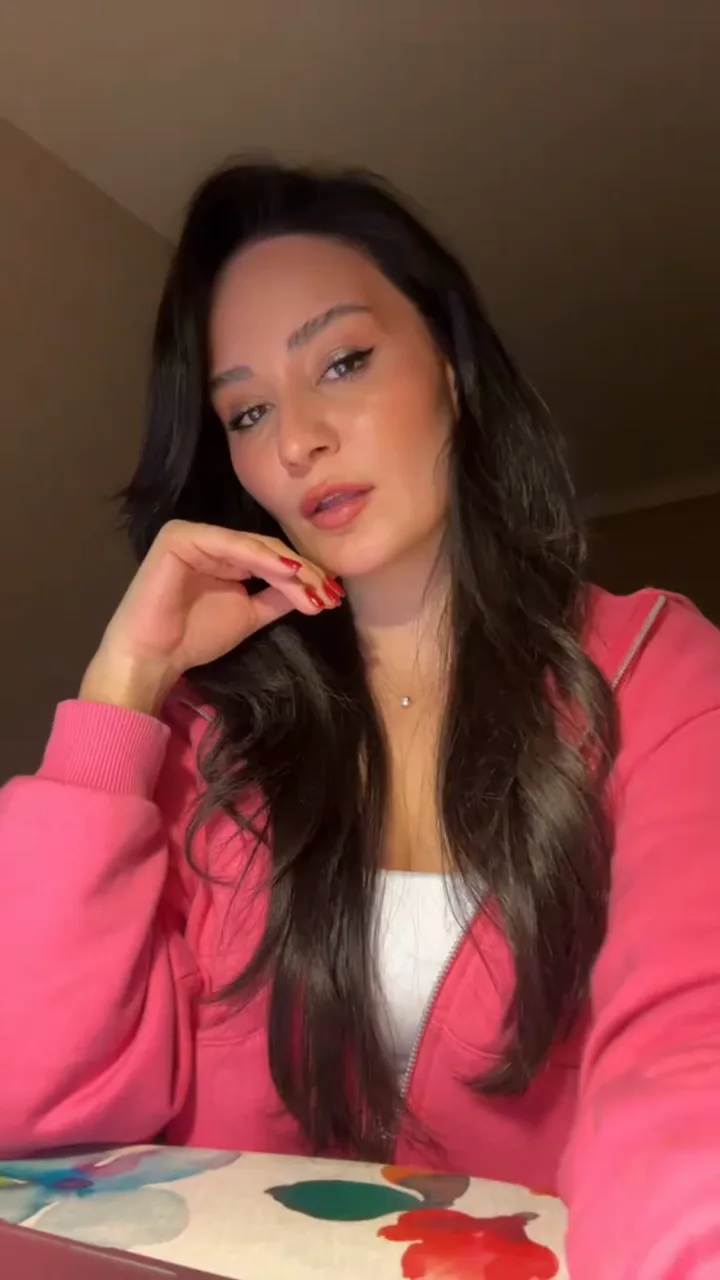 Base video
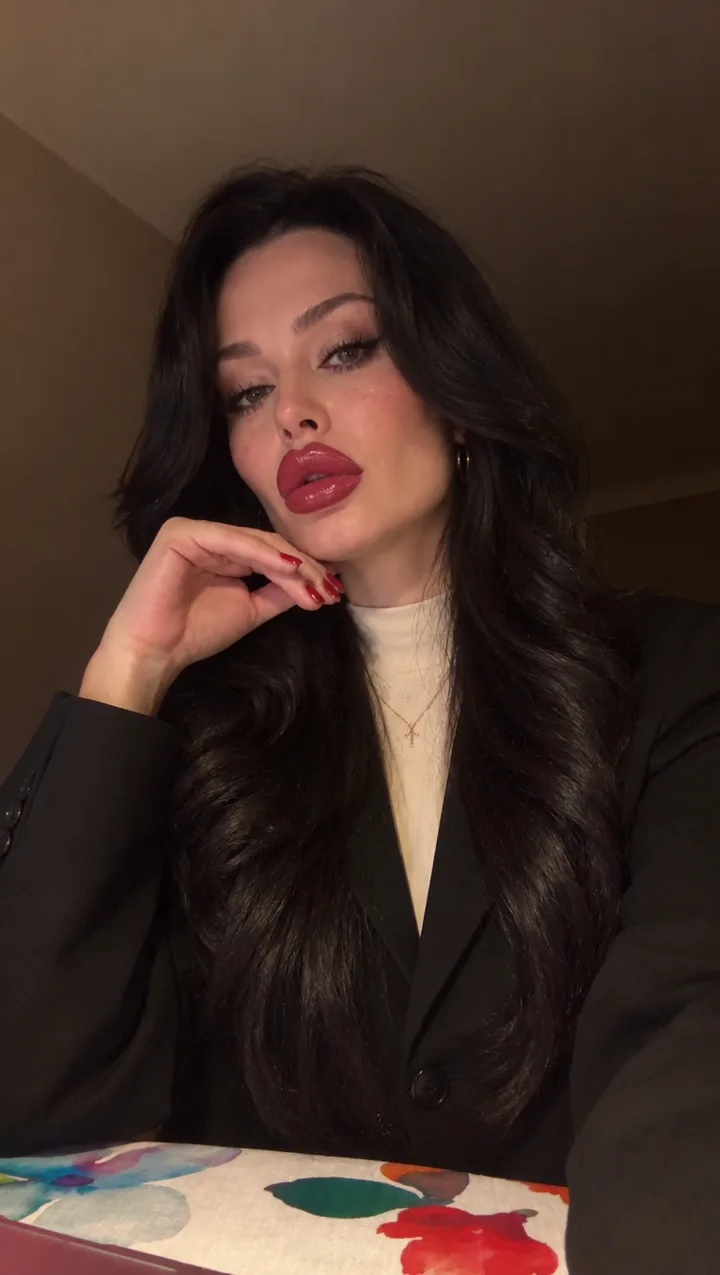 Character 1
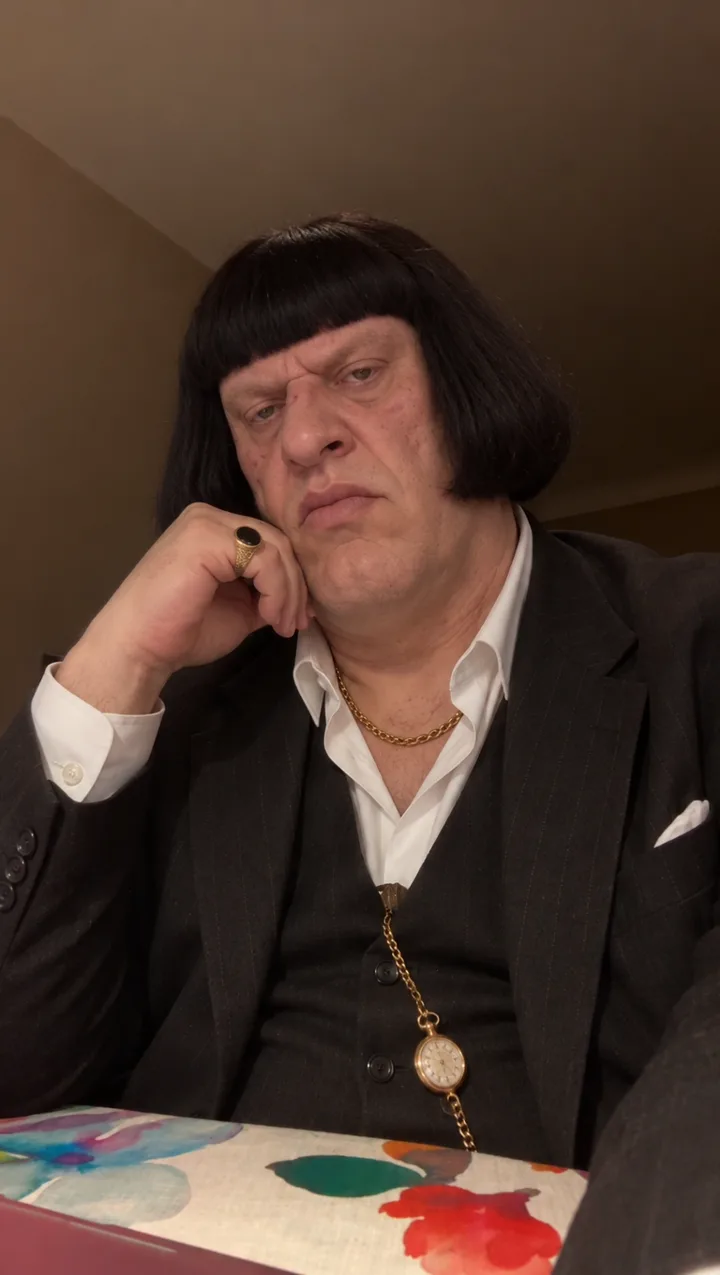 Character 2
Every character in this guide is AI-generated. When you post a swap, say so. The reveal is the reason people watch it twice.
What You Need
- A base video: a clip of one person, ideally talking or singing to the camera, between 2 and 30 seconds long.
- A clear photo of each AI character you want in it. A face close-up and a full-length outfit shot work best.
- A MakeInfluencers account.
- Any video editor for the final cut (CapCut, Premiere, DaVinci, whatever you already use).
How a Swap Works
Seedance 2.5 edits a video using reference images. In Studio, every input gets a tag you can use in your instructions.
| Input | Tag | What it provides |
|---|---|---|
| Reference video | @Video1 | What happens: every gesture, head turn and lip movement, plus the room and the camera |
| Character photo | @Image1 | Who appears: face and hair |
| Outfit photo (optional) | @Image2 | What they wear |
The result is your base video, performed by the person in the reference images. Because the performance comes from your base video, the timing matches it, so the original audio lines up underneath it.
Pick the base video
The base video decides how good the swap looks. Choose one with:
- One person, facing the camera most of the time
- A steady camera, like a phone propped on a table
- A visible face and hands, with no long stretches of hands covering the face
- A length of 2 to 30 seconds, and an MP4, MOV or WebM file of 200 MB or less
Talking and singing clips are ideal because the lips carry the performance. A clip with a strong beat is ideal for the final cut, so a song or a rhythmic voiceover works best.
Long runs of fast motion blur and heavy hand-to-face gestures are the hardest things for a swap to follow. If your base video has them, pick a different moment or a different video. Trim it to that moment before you upload it, since Studio only accepts clips up to 30 seconds for Seedance 2.5.
Get clean character photos
Seedance copies the face and hair from your character photo, so the photo matters more than anything else you add.
- A sharp, front-facing face close-up in even light, with nothing covering the face
- A full-length outfit shot if the outfit should change too
- No other people in either photo
If the character already lives in your library, you can pick it directly in the next step. If not, make the photos first with New photo in Studio, or upload your own.
You do not need to rebuild the first frame of the base video. Seedance keeps the room, the framing and the pose from the base video and only takes the identity from your photos.
Set up the edit in Studio
- Open Studio and choose Edit video.
- Under Reference video, drop your base video, or pick a Studio video you already made. This is @Video1.
- Open Output settings and choose Seedance 2.5 as the model.
- Under People, scene or style references, add the character's face photo, either uploaded or picked from your library. This is @Image1. Add the outfit shot as @Image2 if you have one.
The duration and the aspect ratio follow your base video automatically, so the swap comes out the same length and the same shape.
Tell Seedance who to replace
You can do this two ways. The quickest is to assign each reference:
- Set Reference 1 to Replace a person.
- In Which person in the clip?, describe the person you are replacing, for example "The woman singing to the camera".
- If you added an outfit shot, set Reference 2 to Change an outfit and describe the same person.
Or leave the references on Follow my instructions and write the edit yourself under What should change?:
Replace the person in @Video1 with the person in @Image1. Keep everything else from @Video1 exactly: the same room, lighting, camera position and framing, the same gestures, head movement, lip movement and timing. They wear the outfit from @Image2. Real, uneven skin, no retouching. Keep the look of an unedited phone video.
Three things make this prompt work:
- Naming @Video1 and @Image1 tells Seedance exactly which input supplies the motion and which supplies the person.
- "Keep everything else exactly" locks the room, the framing and the performance to the base video.
- Matching the look of the original clip means the swap does not jump out as a different camera.
Generate the swap
- Set Sound to Silent in Output settings. You will use the base video's own audio in the final cut.
- Check the cost preview, then press Generate edit.
The swap lands in your Studio library when it is ready, and you can download it from there.
Repeat Steps 3 to 5 with your second character and the same base video. You now have two videos with the same timing, which is exactly what the final cut needs.
Put the original audio back
Download both swaps and the original base video. Place the swaps on two tracks in your editor, one above the other, and use the original base video's audio for the whole timeline.
Because both swaps share the base video's timing, the lips match the audio on every track.
If you generated with Sound on, Seedance made new audio for the swap. Mute it and use the original, so the voice and the music stay identical across every cut.
Cut on the beat
This is the step that turns two swaps into one video people rewatch.
- Find the beat. Most songs sit between 90 and 130 BPM, which puts a beat every 0.45 to 0.65 seconds. Put markers on the strongest vocal hits or drum hits.
- Start on character A.
- At the first marker, cut to character B. Switch back at the next one, and keep alternating.
- Cut on the hit itself, not just after it. A cut that lands a few frames early feels tight, and one that lands late feels like a mistake.
- Because both tracks share the same timing, the mouth, the head and the hands keep moving through the cut. Only the person changes.
For a faster feel, cut on every hit in the opening, then switch every second beat once the verse starts. Rapid cuts early hook the viewer, and slower cuts later give them time to take in each character.
Troubleshooting
| Problem | Fix |
|---|---|
| The character looks different from the photo | Use a sharper, front-facing face close-up and describe the face in words as well |
| The original person still shows through | Describe the person to replace more precisely in Which person in the clip?, or name @Video1 and @Image1 in your instructions |
| The outfit is wrong | Add a full-length outfit shot as @Image2 and set it to Change an outfit |
| Hands look wrong | Choose a base video with fewer hand-to-face gestures |
| The swap flickers | Use a steadier base video with better light |
| The clip is rejected | Trim it to 2 to 30 seconds and keep the file under 200 MB |
| The lips are late against the audio | Make sure all tracks start on the same frame in your editor |
Frequently Asked Questions
How long can the base video be?
Seedance 2.5 takes base videos from 2 to 30 seconds. Start with clips under 15 seconds while you learn the workflow. Short clips are quicker, cheaper and easier to get right, and a short loop is all a beat-cut video needs.
Can I use a video of myself as the base?
Yes. Your own video is the safest base video, because you hold every right to it. Do not use videos of other people unless you have permission to.
Do I need Seedance 2.5 specifically?
Seedance 2.5 is the model used in this guide, because it takes a reference video and reference images together and keeps the timing of the base video. Pick it under Output settings before you generate.
Can I swap in a real person?
Only use characters you have the right to use. The workflow is built for invented AI characters, and we recommend against using photos of real people without their consent.
Try It Yourself
Make your first swap in MakeInfluencers at makeinfluencers.com. Open Studio, choose Edit video, add a base video and a character photo, generate with Seedance 2.5, then do it again with a second character and cut between them on the beat.